
by Jeff Stern
(Note: There is also an alternative method of installing UCI VPN support without using the Cisco client, but using the built-in Debian/Ubuntu openconnect and openvpn drivers, should you find the below method does not work for you, or if you prefer to use open-source non-proprietary software.)
OIT has a good general VPN-Linux page with instructions on setting up the Cisco AnyConnect VPN client software for Linux, but I got tripped up in a couple of places and thought I'd pass on some heads-ups for other Debian and Ubuntu users.
I originally wrote this "How-To" for Ubuntu v10, and have updated it through v17.04. It should work for most or all Debian-derived distributions through 9.0 ("Stretch").
Please do write me to let me know how it went for you, and/or with any suggestions. I'd love to hear that it helped someone and/or any improvements that could be added.
Thanks to several for the help getting here.
In the instructions below, I'll walk you through installing the Cisco VPN client on a Debian or Ubuntu system. When you're done, you'll have two commands available at the command-prompt, which you can run to connect to the campus VPN: 'vpn' (text mode) and 'vpnui' (graphical/windowing).
I used to also include instructions for getting VPN support to show up in the NetworkManager icon/applet in the system tray, for those who used a Gnome based desktop. I no longer do this, as it is too complicated these days to keep up with documenting the various desktop environments, and the changes (and unreliability) of NetworkManager. And it's not really necessary anyway. If you get it going for yourself, though, Kudos to You! :-)
$ sudo apt-get update
$ sudo apt-get install lib32z1 lib32ncurses5
$ uname -a
Linux sporkula 3.19.0-31-lowlatency #36-Ubuntu SMP PREEMPT Wed Oct 7 15:44:16 UTC 2015 x86_64 x86_64 x86_64 GNU/Linux
$_
As you can see from the above example, my machine has a 64-bit Intel (x86_64) based processor. If you see a '386' somewhere, then you are on a 32-bit machine.
~$ cd ~/Downloads
~/Downloads]$ tar -xzvf anyconnect-predeploy-linux-64-4.3.05017-k9.tar\ 6.59.23\ AM.gz
anyconnect-4.3.05017/
anyconnect-4.3.05017/vpn/
anyconnect-4.3.05017/vpn/vpn_install.sh
anyconnect-4.3.05017/vpn/vpnagentd
anyconnect-4.3.05017/vpn/vpnagentd_init
anyconnect-4.3.05017/vpn/vpn_uninstall.sh
anyconnect-4.3.05017/vpn/anyconnect_uninstall.sh
anyconnect-4.3.05017/vpn/libacciscossl.so
anyconnect-4.3.05017/vpn/libacciscocrypto.so
anyconnect-4.3.05017/vpn/libaccurl.so.4.3.0
anyconnect-4.3.05017/vpn/vpnui
anyconnect-4.3.05017/vpn/cisco-anyconnect.desktop
anyconnect-4.3.05017/vpn/cisco-anyconnect.menu
anyconnect-4.3.05017/vpn/cisco-anyconnect.directory
anyconnect-4.3.05017/vpn/libvpnagentutilities.so
anyconnect-4.3.05017/vpn/libvpncommon.so
anyconnect-4.3.05017/vpn/libvpncommoncrypt.so
anyconnect-4.3.05017/vpn/libvpnapi.so
anyconnect-4.3.05017/vpn/libvpnipsec.so
anyconnect-4.3.05017/vpn/vpn
anyconnect-4.3.05017/vpn/acinstallhelper
anyconnect-4.3.05017/vpn/pixmaps/
anyconnect-4.3.05017/vpn/pixmaps/company-logo.png
anyconnect-4.3.05017/vpn/pixmaps/cvc-about.png
anyconnect-4.3.05017/vpn/pixmaps/cvc-configure.png
anyconnect-4.3.05017/vpn/pixmaps/cvc-connect.png
anyconnect-4.3.05017/vpn/pixmaps/cvc-disconnect.png
anyconnect-4.3.05017/vpn/pixmaps/cvc-info.png
anyconnect-4.3.05017/vpn/pixmaps/systray_connected.png
anyconnect-4.3.05017/vpn/pixmaps/systray_disconnecting.png
anyconnect-4.3.05017/vpn/pixmaps/systray_notconnected.png
anyconnect-4.3.05017/vpn/pixmaps/systray_quarantined.png
anyconnect-4.3.05017/vpn/pixmaps/systray_reconnecting.png
anyconnect-4.3.05017/vpn/pixmaps/vpnui48.png
anyconnect-4.3.05017/vpn/pixmaps/downloader-arrow.png
anyconnect-4.3.05017/vpn/manifesttool
anyconnect-4.3.05017/vpn/ACManifestVPN.xml
anyconnect-4.3.05017/vpn/vpndownloader
anyconnect-4.3.05017/vpn/vpndownloader-cli
anyconnect-4.3.05017/vpn/update.txt
anyconnect-4.3.05017/vpn/OpenSource.html
anyconnect-4.3.05017/vpn/AnyConnectProfile.xsd
anyconnect-4.3.05017/vpn/AnyConnectLocalPolicy.xsd
anyconnect-4.3.05017/vpn/libacfeedback.so
anyconnect-4.3.05017/vpn/license.txt
anyconnect-4.3.05017/vpn/VeriSignClass3PublicPrimaryCertificationAuthority-G5.pem
anyconnect-4.3.05017/dart/
anyconnect-4.3.05017/dart/dart_install.sh
anyconnect-4.3.05017/dart/AMPEnabler.xml
anyconnect-4.3.05017/dart/AnyConnectConfig.xml
anyconnect-4.3.05017/dart/BaseConfig.xml
anyconnect-4.3.05017/dart/ConfigXMLSchema.xsd
anyconnect-4.3.05017/dart/DARTGUI.glade
anyconnect-4.3.05017/dart/ISEPosture.xml
anyconnect-4.3.05017/dart/NetworkVisibility.xml
anyconnect-4.3.05017/dart/Posture.xml
anyconnect-4.3.05017/dart/RequestXMLSchema.xsd
anyconnect-4.3.05017/dart/Umbrella.xml
anyconnect-4.3.05017/dart/cisco-anyconnect-dart.desktop
anyconnect-4.3.05017/dart/cisco-anyconnect-dart.directory
anyconnect-4.3.05017/dart/cisco-anyconnect-dart.menu
anyconnect-4.3.05017/dart/ciscoLogo.png
anyconnect-4.3.05017/dart/dartCustom.png
anyconnect-4.3.05017/dart/dartTypical.png
anyconnect-4.3.05017/dart/dart_uninstall.sh
anyconnect-4.3.05017/dart/dartcli
anyconnect-4.3.05017/dart/dartcli.symbols
anyconnect-4.3.05017/dart/dartui
anyconnect-4.3.05017/dart/dartui.symbols
anyconnect-4.3.05017/dart/license.txt
anyconnect-4.3.05017/dart/manifesttool
anyconnect-4.3.05017/dart/ACManifestDART.xml
anyconnect-4.3.05017/posture/
anyconnect-4.3.05017/posture/ciscod
anyconnect-4.3.05017/posture/cscan
anyconnect-4.3.05017/posture/ciscod_init
anyconnect-4.3.05017/posture/cstub
anyconnect-4.3.05017/posture/posture_install.sh
anyconnect-4.3.05017/posture/posture_uninstall.sh
anyconnect-4.3.05017/posture/libcsd.so
anyconnect-4.3.05017/posture/libhostscan.so
anyconnect-4.3.05017/posture/libinspector.so
anyconnect-4.3.05017/posture/license.txt
anyconnect-4.3.05017/posture/tables.dat
anyconnect-4.3.05017/posture/ACManifestPOS.xml
anyconnect-4.3.05017/posture/libaccurl.so.4.3.0
anyconnect-4.3.05017/posture/libacciscocrypto.so
anyconnect-4.3.05017/posture/libacciscossl.so
~/Downloads]$ cd anyconnect-4.3.05017
~/Downloads/anyconnect-4.3.05017]$ cd vpn
~/Downloads/anyconnect-4.3.05017/vpn]$ ls -lh
$ total 12M
-rwxr-xr-x 1 jas jas  14K Dec  9  2016 acinstallhelper
-rw-r--r-- 1 jas jas  262 Dec  9  2016 ACManifestVPN.xml
-rw-r--r-- 1 jas jas 6.6K Dec  9  2016 AnyConnectLocalPolicy.xsd
-rw-r--r-- 1 jas jas  83K Dec  9  2016 AnyConnectProfile.xsd
-rwxr-xr-x 1 jas jas  502 Dec  9  2016 anyconnect_uninstall.sh
-rw-r--r-- 1 jas jas  279 Dec  9  2016 cisco-anyconnect.desktop
-rw-r--r-- 1 jas jas  164 Dec  9  2016 cisco-anyconnect.directory
-rw-r--r-- 1 jas jas  603 Dec  9  2016 cisco-anyconnect.menu
-rwxr-xr-x 1 jas jas 2.6M Dec  9  2016 libacciscocrypto.so
-rwxr-xr-x 1 jas jas 436K Dec  9  2016 libacciscossl.so
-rwxr-xr-x 1 jas jas 232K Dec  9  2016 libaccurl.so.4.3.0
-rwxr-xr-x 1 jas jas 168K Dec  9  2016 libacfeedback.so
-rwxr-xr-x 1 jas jas 888K Dec  9  2016 libvpnagentutilities.so
-rwxr-xr-x 1 jas jas 1.6M Dec  9  2016 libvpnapi.so
-rwxr-xr-x 1 jas jas 530K Dec  9  2016 libvpncommoncrypt.so
-rwxr-xr-x 1 jas jas 1.7M Dec  9  2016 libvpncommon.so
-rwxr-xr-x 1 jas jas 1.1M Dec  9  2016 libvpnipsec.so
-rw-r--r-- 1 jas jas  13K Dec  9  2016 license.txt
-rwxr-xr-x 1 jas jas 480K Dec  9  2016 manifesttool
-rw-r--r-- 1 jas jas  68K Dec  9  2016 OpenSource.html
drwxr-sr-x 2 jas jas 4.0K Dec  9  2016 pixmaps
-rw-r--r-- 1 jas jas   10 Dec  9  2016 update.txt
-rw-r--r-- 1 jas jas 1.8K Dec  9  2016 VeriSignClass3PublicPrimaryCertificationAuthority-G5.pem
-rwxr-xr-x 1 jas jas  65K Dec  9  2016 vpn
-rwxr-xr-x 1 jas jas 724K Dec  9  2016 vpnagentd
-rw-r--r-- 1 jas jas 2.1K Dec  9  2016 vpnagentd_init
-rwxr-xr-x 1 jas jas 424K Dec  9  2016 vpndownloader
-rwxr-xr-x 1 jas jas 396K Dec  9  2016 vpndownloader-cli
-rwxr-xr-x 1 jas jas  24K Dec  9  2016 vpn_install.sh
-rwxr-xr-x 1 jas jas 176K Dec  9  2016 vpnui
-rwxr-xr-x 1 jas jas 8.4K Dec  9  2016 vpn_uninstall.sh
~/Downloads/anyconnect-4.3.05017/vpn]$ ./vpn_install.sh
Installing Cisco AnyConnect Secure Mobility Client...
Sorry, you need super user privileges to run this script.
~/Downloads/anyconnect-4.3.05017/vpn]$ sudo ./vpn_install.sh
...
Do you accept the terms in the license agreement? [y/n] y
You have accepted the license agreement.
Please wait while Cisco AnyConnect Secure Mobility Client is being installed...
Starting Cisco AnyConnect Secure Mobility Client Agent...
Done!
~/Downloads/anyconnect-4.3.05017/vpn]$ _
Failed to start vpnagentd.service: Unit vpnagentd.service failed to load: No such file or directory.it most likely means you did not install the two Ubuntu packages up in step 1, above.
$ sudo apt-get install network-manager-openconnectHowever, while this may help some users, this normally should not be necessary, and was not in my testing.
$ sudo systemctl daemon-reload
$ ps auxw | grep vpnagentd | grep -v grep
   root      3049  0.0  0.2 165960  8356 ?        Sl   09:07   0:04 /opt/cisco/anyconnect/bin/vpnagentd
$ find /etc/rc?.d -type l -name "*vpnagentd*"
   /etc/rc2.d/K25vpnagentd
   /etc/rc2.d/S85vpnagentd
   /etc/rc3.d/K25vpnagentd
   /etc/rc3.d/S85vpnagentd
   /etc/rc4.d/K25vpnagentd
   /etc/rc4.d/S85vpnagentd
   /etc/rc5.d/K25vpnagentd
   /etc/rc5.d/S85vpnagentd
or
$ ls -l /etc/rc?.d/*vpn*
   lrwxrwxrwx 1 root root 21 Jun  5 09:07 /etc/rc2.d/K25vpnagentd -> /etc/init.d/vpnagentd*
   lrwxrwxrwx 1 root root 21 Jun  5 09:07 /etc/rc2.d/S85vpnagentd -> /etc/init.d/vpnagentd*
   lrwxrwxrwx 1 root root 21 Jun  5 09:07 /etc/rc3.d/K25vpnagentd -> /etc/init.d/vpnagentd*
   lrwxrwxrwx 1 root root 21 Jun  5 09:07 /etc/rc3.d/S85vpnagentd -> /etc/init.d/vpnagentd*
   lrwxrwxrwx 1 root root 21 Jun  5 09:07 /etc/rc4.d/K25vpnagentd -> /etc/init.d/vpnagentd*
   lrwxrwxrwx 1 root root 21 Jun  5 09:07 /etc/rc4.d/S85vpnagentd -> /etc/init.d/vpnagentd*
   lrwxrwxrwx 1 root root 21 Jun  5 09:07 /etc/rc5.d/K25vpnagentd -> /etc/init.d/vpnagentd*
   lrwxrwxrwx 1 root root 21 Jun  5 09:07 /etc/rc5.d/S85vpnagentd -> /etc/init.d/vpnagentd*
$ alias vpn='/opt/cisco/anyconnect/bin/vpn'
$ alias vpnui='/opt/cisco/anyconnect/bin/vpnui'
$ cat >> ~/.bash_aliases
alias vpn='/opt/cisco/anyconnect/bin/vpn'
alias vpnui='/opt/cisco/anyconnect/bin/vpnui'
^D
$ _
(where you don't actually type the "^D": it means you hit Ctrl-D to finish).
$ nano ~/.bash_aliases
$ vpnui
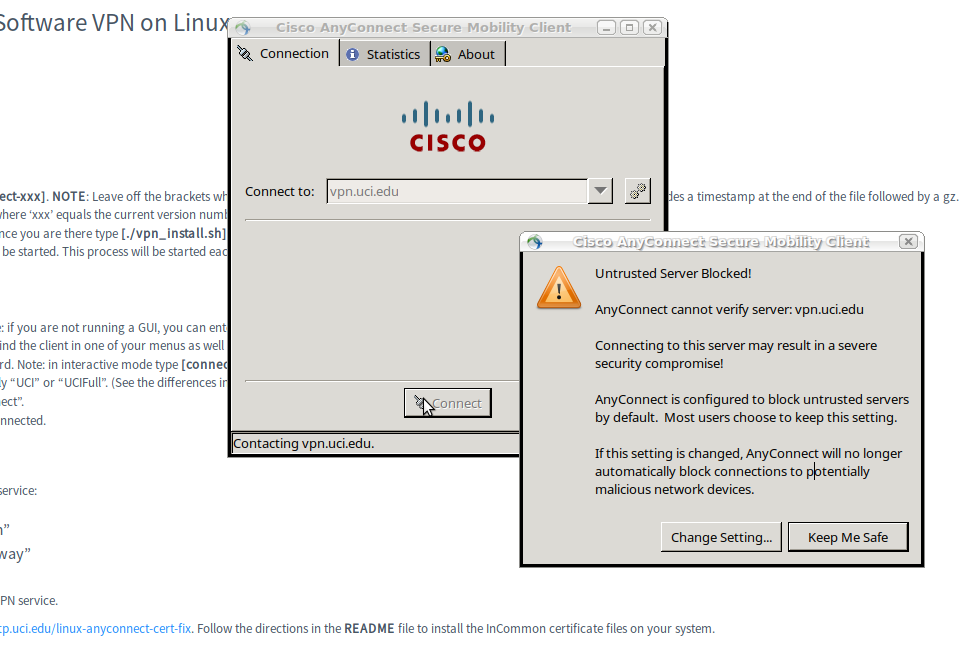
And it should show 'vpn.uci.edu' already. Just click Connect.
If you get an error message about an untrusted server or certificate..
..you can fix that following the instructions from Robert in the section NOTE 1 - Connect-error, below.
(By the way, depending on how the installation went, and whatever of the Linux desktop environments you are using (Gnome, Unity, KDE, Mate, Cinnamon, XFCE, etc.) you may also find that the vpnui graphical client now also appears somewhere in your Applications menu. But don't count on it! This is Linux, after all.. :-) )
$ vpn
VPN> connect vpn.uci.edu
   >> Please enter your UCInetID and password.
   0) Default-WebVPN
   1) Merage
   2) MerageFull
   3) UCI
   4) UCIFull
If you do not see this, but get a connect error instead, please see NOTE 1 - Connect Error below.
I never (not yet?) figured out how to get the Cisco anyconnect software to run via script with command-line parameters sufficient for its running without having to type in your username (UCINetID) and password. I looked into the vpn command / executable supplied by Cisco (in the anyconnect-predeploy package) and running -h on it does not give much help.
Therefore, if you need something command-line and automated, I suggest you use the alternative method using open-source openvpn/openconnect software which I mentioned at the very top of this document. I include a way to do that in an automated way, and I find it works just as well and just as fast, but without having to install proprietary Cisco software. (This is the age of Ed Snowden's warning to us all, after all.. :-/
In most cases I have seen, a connection is made. I have, however, seen the below error before only once. It was when the person was installing on a netbook (running Gnome) which was on campus and usingthe campus wifi system (though I don't know if those factors were the cause). It didn't matter if they answered y or n, they continued to get the error and be denied connection.
------------------------------------------------------------------
Error:

VPN> connect vpn.uci.edu
connect vpn.uci.edu
  >> contacting host (vpn.uci.edu) for login information...
  >> notice: Contacting vpn.uci.edu.
VPN> AnyConnect cannot verify the VPN server: vpn.uci.edu
    - Certificate is from an untrusted source.
Connecting to this server may result in a severe security compromise!

Most users do not connect to untrusted VPN servers unless the
reason for the error condition is known.

Connect Anyway? [y/n]:
------------------------------------------------------------------
Update 2015-12-6: "Robert" wrote me with a solution to this:
$ cd /opt/.cisco/certificates
$ sudo mv ca ca.orig
$ sudo ln -sf /etc/ssl/certs/ ca
$ sudo /etc/init.d/vpnagentd restart
Credit goes to: https://plus.google.com/+AndreasKotowicz/posts/2afhvvNZpE6
Thank you, Robert!
$ sudo /opt/cisco/anyconnect/bin/vpn_uninstall.sh
$ sudo rm -rf /opt/cisco
Several people have written in to me with some additional tips and solutions which I'll add here:
Hi !

Thank you for your web site, a lot of help.

But in "Section 1", lib32z1 and lib32ncurses5 are not avalaible for launch anyconnect

Prefer   libpangox-1_0-0 and pangox-compat

I'm not on debian (DEB) but openSuse (RPM)

Best regards
Thank you for the instructions, it was very helpful so far but after I type vpn in terminal I get the message: /opt/cisco/anyconnect/bin/vpn: error while loading shared libraries: libxml2.so.2: cannot open shared object file: No such file or directoryThis turned out to be a missing library fixable by:
sudo apt-get install libxml2:i386 libstdc++6:i386
Hello Jeff,

Thank you for your advice! After installing the package you recommended I was able to make alias to point to the vpn command.

After I did that and typed "vnp" I used to get the error message:
  >> error: VPN Service not available.
unable to attach to VPN subsystem!

after searching the internet I found this link that was helpful with that problem.

After this everything seems to be fine.

I just wanted to share my experience as I'm very grateful for your help.

Thank you,
Zviadi
(If that link no longer works, it is just recommended to start /opt/cisco/anyconnect/bin/vpnagentd first.)
Pascal researched and found that the error, anyconnect was not able to establish a connection to the specified secure gateway is a known problem with Cisco clients before version 4, when these earlier clients are installed on Ubuntu 16.04+. The solution is either to downgrade your Ubuntu, or upgrade your Cisco client. At my university we have upgraded to offering version 4 (anyconnect-predeploy-linux-64-4.3.05017-k9.tar.gz), and this supposedly works with the newer Ubuntus. I did not myself test the new version 4 Anyconnect client with Ubuntus 15.x and 16.x. But I have tested it today (April 27 2017) with my Ubuntu 17.04 system, and it works great.
Please email me to let me know how this process went for you, and/or with any suggestions for improvement on this page itself. Thanks.
Thanks to:
Last Updated Oct 30 2017